
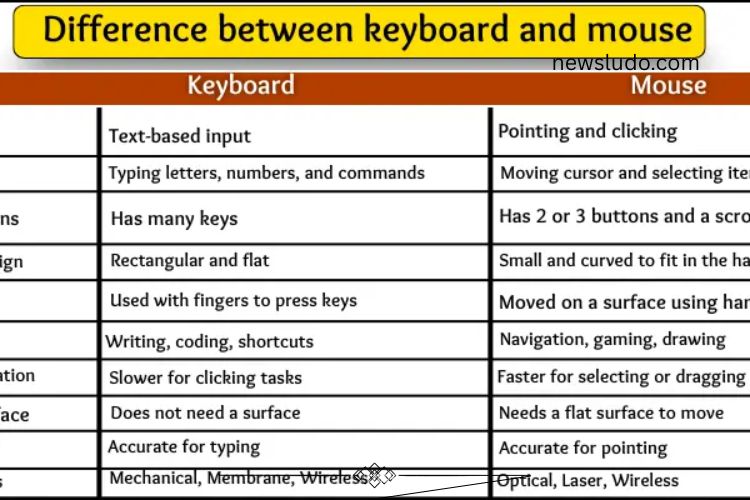
Understanding the difference between a keyboard and a mouse is essential for anyone using a computer. Both are primary input devices, but they function in distinct ways, serve different purposes, and are used differently. Knowing these differences can improve efficiency, accuracy, and overall computer experience.
Read More: https://newsludo.com/analog-computers-uncovered-your-easy-must-know/
What Are Keyboard and Mouse?
A keyboard and a mouse are both input devices, meaning they allow users to communicate with a computer. However, they operate differently. While the keyboard mainly focuses on typing and command inputs, the mouse is designed for navigation and selection on the screen. Together, they form the backbone of everyday computer interaction.
Input Type: How They Communicate With Computers
Keyboard
The keyboard allows users to input letters, numbers, and symbols by pressing keys. Each key sends a signal to the computer, helping you write documents, execute commands, or perform various tasks efficiently.
Mouse
The mouse controls the cursor on the screen. Through clicking, dragging, and scrolling, it informs the computer where to point or select. It’s essential for actions like opening files, navigating software, and interacting with graphics.
Main Function: The Core Purpose
Keyboard
The keyboard’s main purpose is typing. It converts your keystrokes into text, commands, and shortcuts. Whether writing emails, coding, or creating documents, the keyboard is indispensable.
Mouse
The mouse’s main function is pointing. It allows precise control over the cursor to click, select, drag, or drop items. Without a mouse, many graphical or interactive tasks would become cumbersome.
Number of Keys or Buttons
Keyboard
Keyboards contain numerous keys, including letters, numbers, symbols, and special function keys like Enter, Space, and Delete. This diversity enables a wide range of tasks.
Mouse
A typical mouse has two or three buttons and a scroll wheel. The left button selects or clicks, the right button provides options, and the scroll wheel allows smooth navigation through documents or webpages.
Shape and Design
Keyboard
A keyboard is flat and rectangular, designed to sit in front of a computer. Its layout keeps all keys within easy reach, allowing efficient typing without moving the device.
Mouse
A mouse is small, rounded, or oval-shaped, fitting comfortably in your hand. Its compact design allows smooth movement across a desk or mouse pad, optimizing cursor control.
Usage Style: How We Interact
Keyboard
Typing on a keyboard requires finger movement while the hands remain stationary. Users focus on the screen while pressing keys, making the keyboard ideal for text-heavy tasks.
Mouse
Using a mouse involves hand movement across a surface. Actions like dragging, clicking, and scrolling depend on accurate hand control, which makes it indispensable for navigation and graphic work.
Tasks They Are Used For
Keyboard
Keyboards excel in typing tasks. They are used for writing emails, completing assignments, coding, entering data, and executing keyboard shortcuts.
Mouse
The mouse is ideal for selection and navigation. Opening files, playing games, dragging images, and interacting with software interfaces are all mouse-driven activities.
Speed of Operation
Keyboard
Typing speed depends on finger dexterity and familiarity with the layout. Efficient users can input text quickly, making the keyboard highly effective for large amounts of data entry.
Mouse
Mouse speed depends on hand movement and precision. Fast and accurate control is essential for tasks like gaming, graphic design, or navigating complex software interfaces.
Need for Surface
Keyboard
A keyboard can remain stationary on any table while typing. It does not require extra space to function.
Mouse
A mouse needs a flat surface for smooth movement. Soft or uneven surfaces can affect cursor control, making a mouse pad or desk ideal.
Input Accuracy: Precision Matters
Keyboard
Keyboards deliver precise input if the correct key is pressed. However, even a single wrong key can result in errors, such as typing “bat” instead of “cat.”
Mouse
Mouse input accuracy is vital for selecting the right icons or objects. Mistakes can often be corrected with a quick click, making it more forgiving than keyboard errors in some tasks.
Common Types of Keyboards
- Wired Keyboard: Connects via a cable, reliable and fast.
- Wireless Keyboard: Operates without a cable, offering mobility.
- Mechanical Keyboard: Produces clicky feedback and is durable.
- Membrane Keyboard: Quiet and soft keys, ideal for office use.
Common Types of Mice
- Optical Mouse: Uses light to detect movement.
- Laser Mouse: Works with a laser for precise tracking.
- Wired Mouse: Connects with a cable for steady performance.
- Wireless Mouse: Battery-operated, provides freedom of movement.
Frequently Asked Questions:
What is the main difference between a keyboard and a mouse?
The keyboard is mainly used for typing letters, numbers, and symbols, while the mouse is designed for navigation, selecting, and controlling the cursor on the screen.
Can a computer work without a keyboard or mouse?
Yes, but it would be limited. Some computers support touchscreens or voice commands, but a keyboard and mouse provide the fastest and most precise input for most tasks.
Which device is faster for input: keyboard or mouse?
It depends on the task. Typing large amounts of text is faster with a keyboard, while navigation, selection, and graphic tasks are faster with a mouse.
Are all keyboards and mice the same?
No. Keyboards can be wired, wireless, mechanical, or membrane-based. Mice can be wired, wireless, optical, or laser. Each type offers different features and comfort levels.
Do keyboards and mice require special surfaces to work?
Keyboards only need a flat area to stay on. Mice, however, work best on smooth surfaces or mouse pads to ensure accurate cursor movement.
Which device is mire prone to mistakes?
Both require precision. Typing errors on a keyboard can change entire words, while clicking errors with a mouse are usually easier to correct.
Can I use keyboard shortcuts with a mouse?
Keyboard shortcuts are specific to the keyboard, but the mouse complements them by allowing navigation, clicking, and selection to speed up workflow.
Conclusion
Understanding the differences between a keyboard and a mouse is essential for anyone who uses a computer. While the keyboard excels at typing and entering data, the mouse provides precise control for navigation, selection, and interactive tasks. Both devices complement each other, enhancing efficiency, accuracy, and overall productivity. Choosing the right type of keyboard or mouse based on your needs—whether for work, gaming, or design—can significantly improve your computer experience. By mastering their functions and proper usage, every user can make the most of these indispensable input tools.