
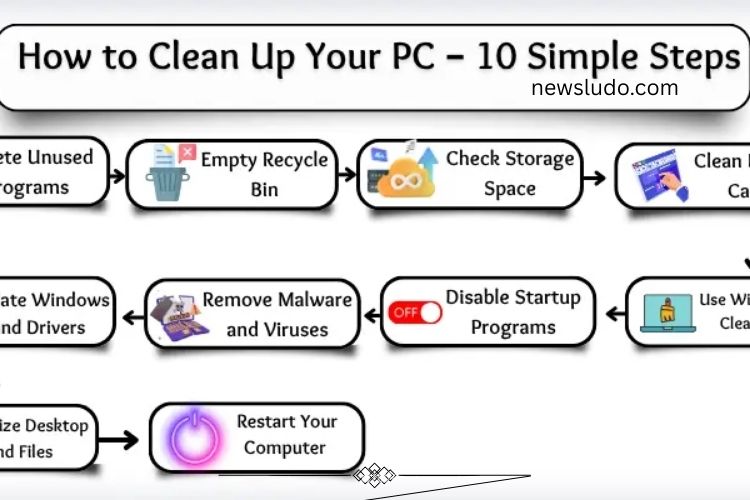
A slow, cluttered PC can be frustrating. Over time, unnecessary files, programs, and background processes accumulate, making your computer lag and respond slowly. Cleaning your PC regularly can help it run faster, smoother, and more efficiently. This guide walks you through practical steps to refresh your system and restore peak performance.
Read More: https://newsludo.com/unbreakable-firewall-in-computer-networks/
Remove Unused Programs
Installing software is easy, but forgetting about unused programs can cost your PC valuable space and processing power. Regularly uninstall programs you no longer use to free up storage and improve speed.
How to remove programs:
- Click the Start button and type Add or remove programs in the search bar.
- Press Enter to open the list of installed programs.
- Select programs you no longer need and click Uninstall.
- Follow the prompts to remove them completely.
- This simple step can instantly free up storage and reduce background processes.
Empty the Recycle Bin
Deleted files aren’t truly gone—they remain in the Recycle Bin, taking up space. Emptying it ensures your system gains additional free storage.
Steps to empty the Recycle Bin:
- Locate the Recycle Bin on your desktop and open it.
- Review its contents to make sure nothing important is left.
- Click Empty Recycle Bin and confirm by pressing Yes.
- Your PC will instantly gain more usable space.
- Check Storage Space and Cleanup Suggestions
Windows can analyze your storage and provide recommendations to remove unnecessary files. This tool helps identify large files, unused apps, and duplicate items.
How to use it:
- Open Settings and select System.
- Click Storage and wait for your PC to scan the drives.
- Review the storage breakdown and follow Windows’ cleanup suggestions.
- Regularly monitoring storage helps prevent your system from getting bogged down.
Clear Browser Cache and History
Web browsers store cache and history to load websites faster, but excessive data can slow down your PC. Clearing them improves performance and protects privacy.
Steps for Google Chrome:
- Open Chrome and click the three dots in the top-right corner.
- Select Settings > Privacy and Security > Clear browsing data.
- Check Browsing history and Cached images and files.
Click Clear Data.
Repeat this for other browsers you use regularly.
Use Windows Disk Cleanup Tool
Temporary files, system caches, and leftover updates can pile up over time. Windows’ built-in Disk Cleanup tool efficiently removes these unnecessary files.
How to clean your drive:
- Click Start and type Disk Cleanup.
- Open the app and select your main drive (usually C:).
- Wait while it scans for unnecessary files.
- Select the files to delete and click OK, then Delete Files.
- This frees space and can improve system speed noticeably.
Disable Startup Programs
Many applications automatically start when your PC boots, slowing down startup times. Disabling unnecessary startup programs helps your computer start faster.
Steps to manage startup programs:
- Press Ctrl + Shift + Esc to open Task Manager.
- Click the Startup tab to see programs that launch at boot.
- Select programs you rarely use and click Disable.
This reduces background processes and speeds up your system’s startup.
Scan for Malware and Viruses
Malware and viruses not only slow your PC but can damage files and compromise security. Regular scans keep your computer safe and efficient.
How to scan your PC:
- Open Settings > Update & Security > Windows Security.
- Click Virus & threat protection.
- Press Quick Scan and wait for results.
- Follow prompts to remove any detected threats.
Consider running a full scan occasionally for thorough protection.
Update Windows and Drivers
System updates fix bugs, improve performance, and enhance security. Drivers ensure hardware runs smoothly. Keeping both up-to-date prevents slowdowns.
Update Windows:
- Open Settings > Update & Security > Windows Update.
- Click Check for updates and install available updates.
- Restart your PC if prompted.
Update drivers:
- Right-click the Start button and select Device Manager.
- Choose a device (e.g., display or audio), right-click, and select Update driver.
- Follow the on-screen instructions.
- Regular updates maintain optimal performance.
Organize Desktop and Files
A cluttered desktop slows your workflow and makes it harder to locate files. Organizing your files and folders improves productivity and keeps your PC tidy.
How to organize your desktop:
- Delete unnecessary shortcuts and files.
- Create folders labeled Pictures, Documents, or Games.
- Move files into appropriate folders.
- Right-click the desktop and choose Sort by or View for a clean layout.
- An organized workspace enhances efficiency and reduces system clutter.
Restart Your Computer Regularly
Restarting your PC refreshes memory, closes unnecessary processes, and fixes minor issues. It’s a simple habit that keeps your computer running smoothly.
How to restart:
- Click the Start menu.
- Click the Power icon and select Restart.
- Wait for your PC to reboot completely.
- Frequent restarts prevent performance degradation over time.
Frequently Asked Questions:
Why should I clean up my PC regularly?
Regular cleanup removes unnecessary files, programs, and malware, which can slow down your computer. It helps improve speed, stability, and overall performance.
What’s the easiest way to remove unused programs?
Go to Start > Add or remove programs, find programs you don’t use, and click Uninstall. This frees up storage and reduces background processes.
How often should I clear my browser cache?
Clearing your cache every few weeks or when your browser feels slow helps improve browsing speed and frees up space on your PC.
Can disabling startup programs really speed up my PC?
Yes! Many programs run automatically when Windows starts. Disabling unnecessary ones reduces boot time and improves overall system performance.
What is the Disk Cleanup tool and how does it help?
Disk Cleanup removes temporary files, system caches, and leftover installation files that take up space. It’s an easy way to reclaim storage and speed up your PC.
How do I check for malware or viruses on my PC?
Use Windows Security or another trusted antivirus software. Run a quick or full scan to detect and remove harmful files.
Why are updates important for Windows and drivers?
Updates fix bugs, improve security, and enhance system performance. Updated drivers ensure your hardware runs smoothly and efficiently.
Conclusion
Keeping your PC clean and well-maintained is the key to a faster, smoother, and more reliable computing experience. By removing unused programs, clearing temporary files, managing startup apps, scanning for malware, updating Windows and drivers, and organizing your files, you can dramatically improve performance and extend the life of your computer. Small habits like restarting regularly and monitoring storage can make a big difference over time. Follow these steps consistently, and your PC will not only feel like new but will also operate at its full potential—efficient, responsive, and ready for anything you throw at it. Take control of your computer’s performance today and enjoy a seamless, lag-free experience every time you use it.